
Onboarding
Every new organization follows the same onboarding flow to ensure clean data, consistent financial statements, and reliable analytics. This setup is mandatory and takes only a few minutes.
TL;DR
Upload a trial balance, design your statements, map your accounts. Ready in under 10 minutes.
1. Upload Data
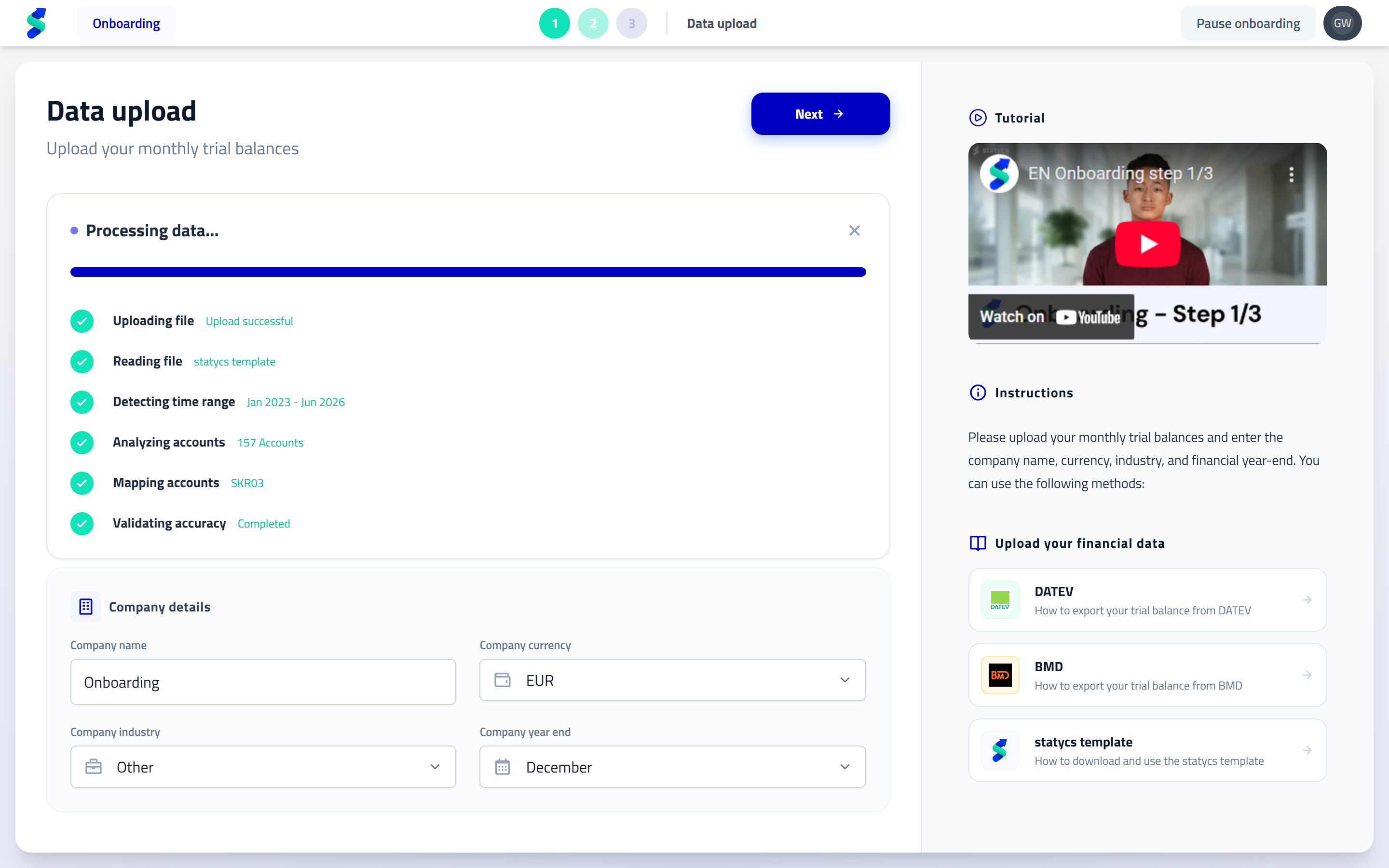
What you do
- Upload your trial balance using supported formats
- Define company name, fiscal year-end, industry, and currency
Why it matters
- Standardized imports prevent format and structure issues
- Clear guidance ensures correct exports and templates
Formats & inputs
- Additional input formats and integrations will be added continuously
- The onboarding flow remains the same for all future inputs
Validation
- Unsupported formats trigger an error with clear instructions
- You can only continue once a valid trial balance is detected
2. Design Financial Statements
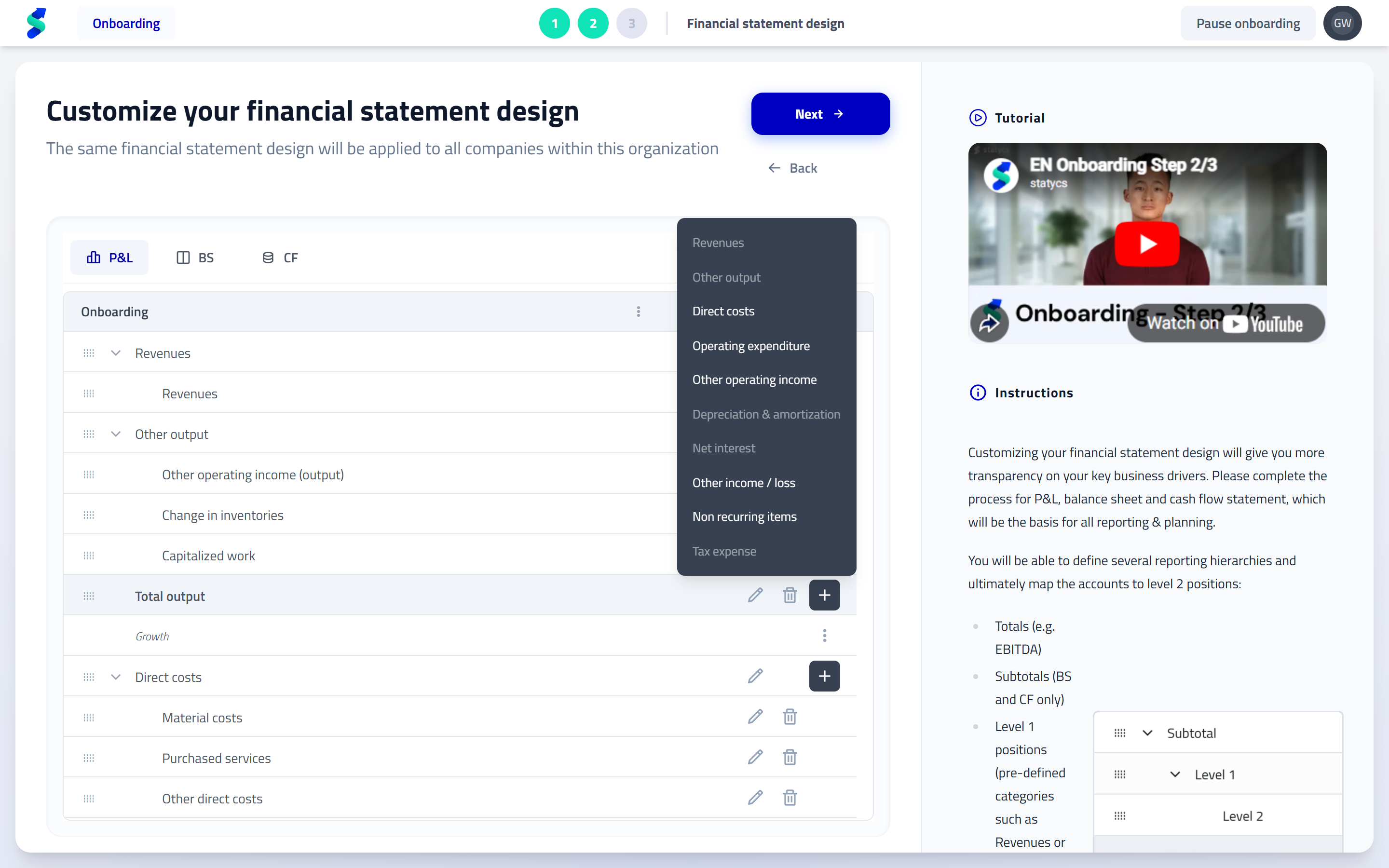
What you do
- Define the structure of your P&L, Balance Sheet, and Cash Flow
- Add and arrange Totals, Subtotals, Level 1, and Level 2 positions via drag & drop
- Start from templates or extend the predefined structure
Why it matters
- Reporting reflects your business logic—not your chart of accounts
- A consistent structure enables clean analysis and planning across all companies
You can refine Level 2 positions and account groups later. The goal at this stage is to establish a solid, consistent structure.
Hierarchy of Financial Data
statycs structures financial data in a clear, multi-level hierarchy. This ensures consistency, transparency, and reliable analytics across all reports and planning models.
- Totals
- Subtotals (BS & CF only)
- Level 1 Positions
- Level 2 Positions
- (Optional) Account Groups
- Accounts (Trial Balance)
- (Optional) Account Groups
- Level 2 Positions
- Level 1 Positions
- Subtotals (BS & CF only)
From top to bottom, the hierarchy works as follows:
Totals
Examples: EBITDA, Total Assets
High-level aggregations that summarize multiple subtotals and positions.
Subtotals (Balance Sheet & Cash Flow only)
Examples: Provisions, Current Assets
Intermediate aggregations used in Balance Sheet and Cash Flow statements to group related positions.
Level 1 Positions
Examples: Revenues, Fixed Assets
Predefined reporting categories that form the backbone of your financial statements.
Level 2 Positions
Examples: Personnel Expenses, Property, Plant & Equipment (PPE)
Customizable positions where you structure your business-specific reporting.
(Optional) Account Groups
Optional grouping layer between Level 2 positions and individual accounts.
Used for better structuring, analysis, and planning drivers.
Accounts
Imported directly from your trial balance.
These are the lowest-level data points in the hierarchy.
Mapping Rule
Accounts are always mapped to Level 2 positions.
Mapping to Totals, Subtotals, or Level 1 positions is not possible.
This ensures a consistent structure and enables reliable analysis, planning, and consolidation.
Predefined Level 1 positions
Level 1 positions are predefined to ensure standardized financial logic and reliable analytics. These positions cannot be removed.
P&L
- Revenues
- Other Output
- Direct Costs
- Operating Expenditure
- Other Operating Income
- Depreciation & Amortization
- Net Interest
- Other Income / Loss
- Non-recurring Items
- Tax Expense
Balance Sheet
- Fixed Assets
- Inventory
- Trade Receivables
- Other Assets
- Cash & Cash Equivalents
- Equity
- Provisions
- Financial Liabilities
- Trade Payables
- Advance Payments
- Other Liabilities
Level 2 positions and account groups are fully customizable within this structure.
Automatic logic & fixed positions
Certain positions include built-in logic to ensure consistent financial calculations.
- Level 2 positions under Fixed Assets automatically generate CapEx, depreciation, and cash flow entries
- Positions under EBITDA populate "Other Cash Flow" entries
Fixed (non-editable) positions
- EBITDA
- Net Income
- Total Assets
- Total Equity & Liabilities
- Cash & Cash Equivalents
- Retained Earnings / P&L Carryforward
- Non-categorized (placeholder for unmapped accounts)
3. Map Accounts
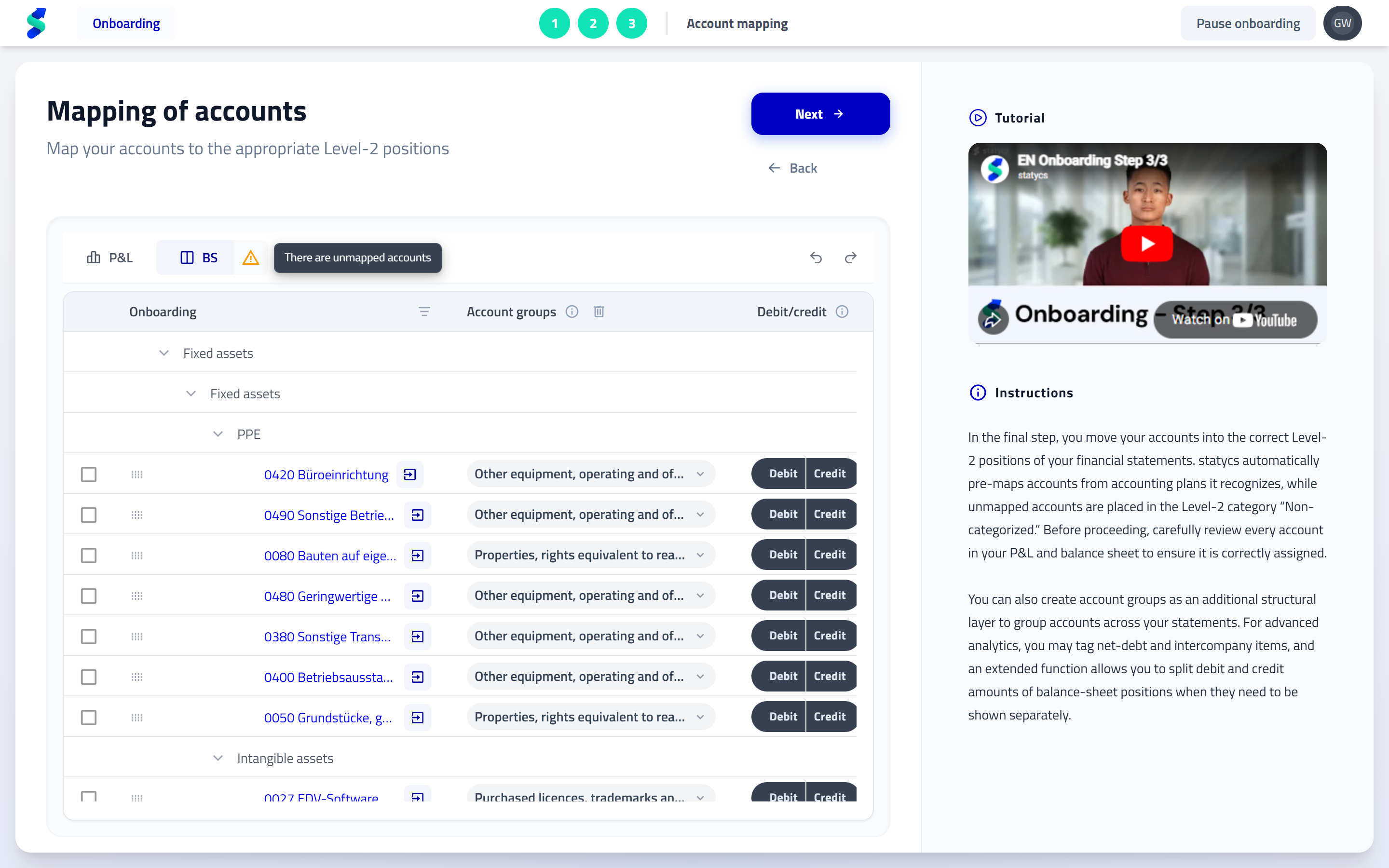
What you do
- Map trial balance accounts to Level 2 positions
- Create account groups as an intermediate structural layer between Level 2 positions and individual accounts
- Review and adjust auto-mapping (supported charts of accounts are recognized)
- Tag net debt and intercompany accounts
- Split debit and credit balances if required (e.g. negative receivables treated as liabilities)
Why it matters
- Automatic mapping reduces setup effort significantly
- Warning indicators immediately highlight unmapped accounts
- Correct structure and tagging prepare your data for analysis, planning, and consolidation
Account groups
Account groups are a structural layer between Level 2 positions and individual accounts.
They improve grouping, enable cleaner analysis, and serve as drivers in planning.
Account groups are reused consistently across Financials, Analysis, and Planning.
Automapping & new uploads
- Standard charts of accounts are mapped automatically
- For previously mapped companies, new uploads that contain new or unknown accounts place those accounts automatically into Non-categorized
- This allows you to immediately identify and map new accounts correctly without affecting existing mappings
- Automapping coverage will be expanded continuously