
Analysis
What the Analysis workspace is for
The Analysis workspace provides structured, ready-made analyses of your financial data. It is designed for understanding drivers, tracking KPIs, and exploring relationships across Profit & Loss, Cash Flow, Balance Sheet, and accounts — without building reports manually.
Analysis is where custom KPIs are defined and maintained, which can later be selected and monitored in the Dashboard.
TL;DR
Seven focused analysis areas that help you understand why your numbers change — not just what they are.
How Analysis works
Analysis is fully based on your confirmed data and the current statement structure.
- You can switch between Monthly and Yearly views
- All charts and KPIs adjust automatically
- Time ranges, series visibility, and chart layout can be adjusted interactively
Analysis is a read-only analytical view; it does not change underlying data or Financials.
Analysis overview
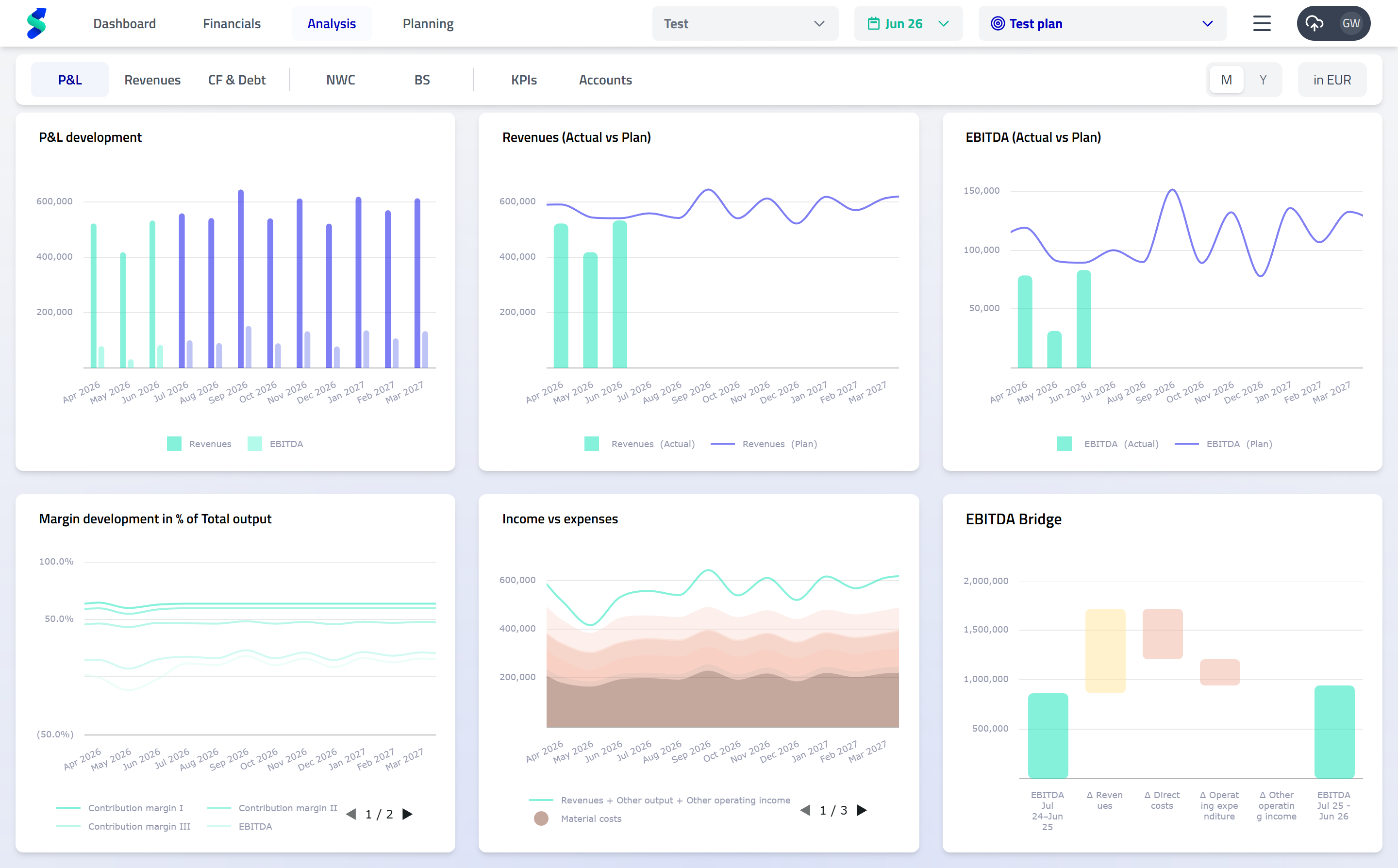
Key capabilities
Timeframe selection
Use the timeframe toggle (M / Y) to switch between:
- Monthly – detailed period analysis
- Yearly – aggregated annual view
All analyses update consistently when switching timeframes.
Chart interaction
All charts follow the same interaction patterns:
- Maximize / close charts via the top-right control
- Select periods using the calendar icon
- Show or hide series via the chart legend
- Open the ⋮ menu for chart-specific options, such as:
- Show / hide legend
- Enable / disable data labels
- Adjust chart display settings
This consistency allows you to explore data quickly without re-learning controls.
Time range adjustment
For supported charts, open the ⋮ menu and select Show navigator.
The navigator lets you:
- Zoom into specific periods
- Extend or shorten the visible time range directly within the chart
KPI definition & management
Custom KPIs are defined in the Analysis workspace and reused in the Dashboard.
- Create a new KPI via + New KPI
- Select base metrics
- Build formulas using the formula editor (basic mathematical operations and offset functions)
- KPIs update automatically across all timeframes
KPI naming & language
- KPI names can be edited by double-clicking
- KPI names are language-specific
- To rename a KPI in another language, switch the application language and edit the name again
KPIs affect visualizations and dashboards but do not change Financials or underlying data.
Analysis areas
The Analysis workspace is organized into seven focused areas, each answering a different analytical question.
Profit & Loss (P&L)
Use this section to understand how your operating performance develops over time.
It helps you analyze revenue growth, margin evolution, and the drivers behind profit changes.
Revenues
Use this section to analyze what drives your revenue.
It focuses on revenue composition, growth dynamics, and changes across segments or categories.
Cash Flow & Net Debt
Use this section to understand liquidity and financing dynamics.
It helps you see how cash is generated and used, and how this impacts net debt over time.
Net Working Capital
Use this section to analyze operational efficiency and capital tie-up.
It focuses on receivables, payables, inventory, and the cash conversion cycle.
Balance Sheet
Use this section to assess financial structure and stability.
It provides insight into assets, liabilities, equity, and key balance sheet ratios.
Key Performance Indicators (KPIs)
Use this section to define, structure, and analyze KPIs in detail.
KPIs created or adjusted here are later selected and displayed on the Dashboard for ongoing monitoring.
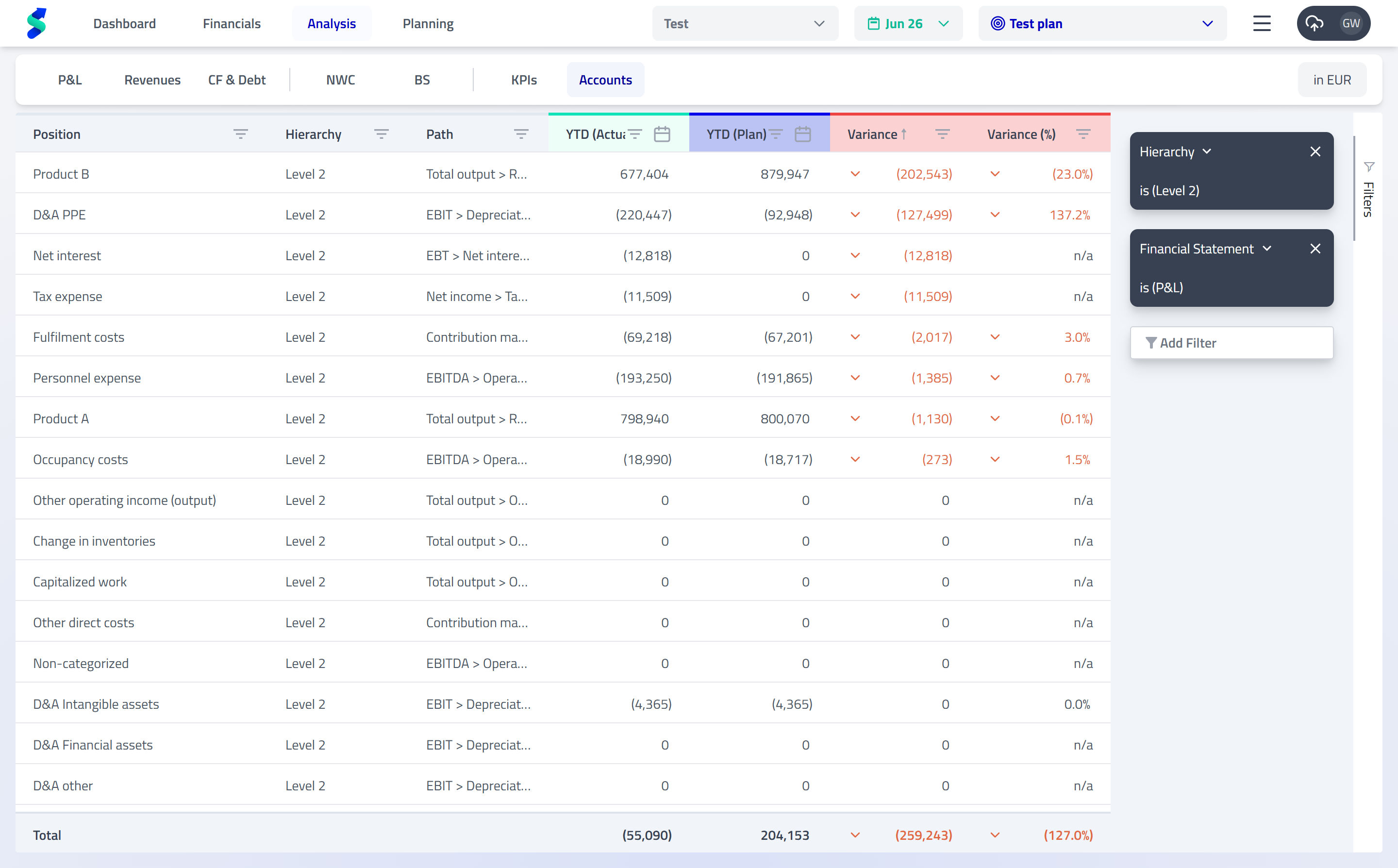
Accounts
Use this section to explore raw accounting data.
It allows you to search, filter, and drill into individual account balances for detailed inspection.
This section is intended for analysis only; changes to accounts or mappings are handled in Onboarding & Data.
Workflow tip
If you want to change which KPIs appear on the Dashboard, define or adjust them here.
Any KPI changes in Analysis are reflected automatically in the Dashboard.