
Planning
What the Planning workspace is for
The Planning workspace is where budgets, forecasts, and scenarios are created and maintained. It allows you to translate assumptions and business drivers into monthly plans, while keeping a yearly overview for validation and context.
Planning is designed for structured, driver-based planning that remains transparent, traceable, and easy to adjust over time.
TL;DR
Plan monthly, validate yearly, and model scenarios without spreadsheets.
How Planning works
Planning is always performed at a monthly level.
- You plan on Level 2 positions
- Each Level 2 position can be broken down into sub-positions
- Each sub-position follows a defined planning method
- A read-only yearly view is available for consistency checks
Planning does not change actuals.
Plans become relevant across the product only once they are activated.
Plans, status & last actuals
Before planning, it’s important to understand how plans are structured.
- Each plan has a fixed last actuals date
This defines the cut-off between historical actuals and planned periods and cannot be changed for that plan. - Plans start in draft status
Draft plans are only visible in the Planning workspace. - Only active plans are used across the product
Once activated, a plan becomes available in:- Financials (comparisons and variances)
- Dashboard
- Analysis
- Scenario planning is supported
New plans can be created based on existing plans, using different assumptions or a different last actuals date.
This allows you to work on multiple scenarios without affecting live reporting.
Planning workflow (conceptual)
Plan on Level 2 positions
Planning starts at Level 2 positions.
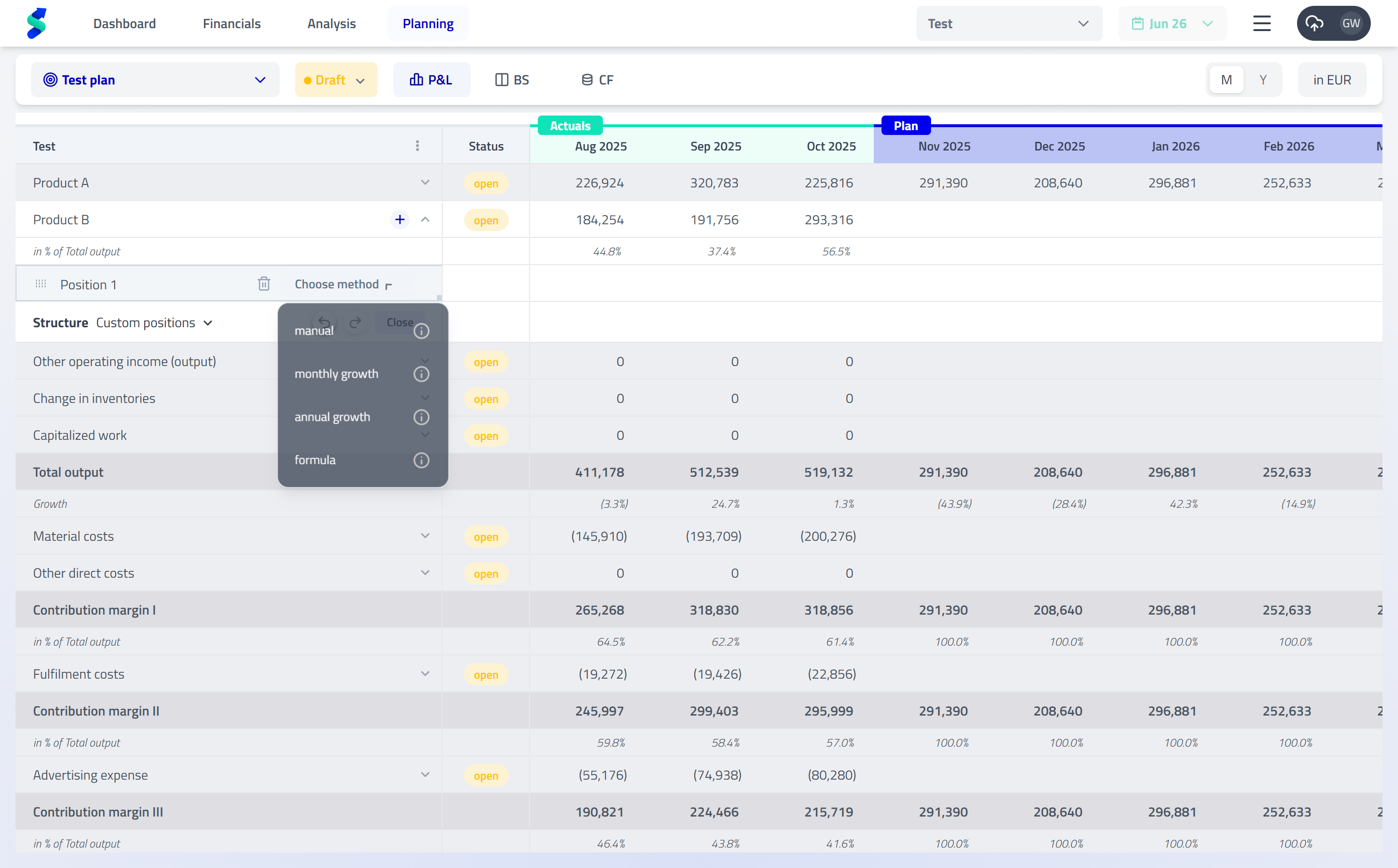
- Expand a Level 2 position to enter planning mode
- Add sub-positions manually or based on existing structures
- Each sub-position represents a specific planning driver
Planning methods (conceptual)
Each sub-position uses a planning method that defines how values are calculated over time.
Examples include:
- Manual entry
- Growth-based planning
- Ratio-based planning
- Working-capital-driven planning
- Headcount or investment-based planning
- Formula-based planning
Planning methods define calculation logic, not targets.
Detailed explanations of all available planning methods are documented in the Planning Methods section.
Context lines
Context lines provide additional perspective on planned values.
- Display relationships such as % of revenue
- View ratios alongside absolute values
- Improve interpretability without changing the plan
Validation & error handling
statycs continuously validates planning logic.
- Formula errors and invalid dependencies are detected automatically
- Issues are surfaced in the sub-navigation bar
- Clicking an error takes you directly to the affected position
This ensures plans are consistent before activation.
Undo / Redo
Planning actions can be undone or redone at any time.
- Undo or redo across planning methods and sub-positions
- Enables safe experimentation without losing work
Yearly overview
Although planning happens monthly, a read-only yearly view is always available.
- Switch via the Y toggle
- Review annual totals for plausibility
- Validate that monthly logic aligns with yearly expectations
Status & collaboration
Each Level 2 position can be marked as:
- Open – still in progress
- Done – finalized and ready for review
This supports collaboration and makes planning progress transparent across teams.
Workflow tip
Use Planning to define assumptions and drivers.
Once a plan is activated, it becomes available for comparison and monitoring across the product.